
Julia Installation
Contents
Julia Installation#
Introduction#
Julia is a dynamically typed compiled programming language developed at MIT for general purpose computing. Julia has a number of interesting features, and is an open source project available under the MIT license. Julia is available on all major computing platforms and operating sytstems (macOS, Windows and Linux). In addition, in this course we’ll be using Visual Studio Code (VS Code) to compose and run our Julia programs.
In this chapter, we will:
Discuss the Installation and Requirments for Julia
Discuss the Installation and Requirments for VSCode
Installation and Requirments for Julia#
Julia, which runs on all major systems, can be downloaded from the Julia downloads page. Select the appropriate download version, and then follow the instructions for installation.
For Windows users, before downloading Julia, please see the specific instructions below.
macOS#
On macOS, a julia-1.x.x-mac64.dmg installation file is contained in the download, which contains the executable Julia-1.x.app. Installation of Julia on macOS works the same as any other Mac software: drag the Julia-1.x.app to Applications Folder. Julia runs on macOS 10.9 Mavericks or later.
To launch Julia from the command line, you’ll need to update your PATH environmental variable to include the location of Julia; add the following line to the .zshrc file in your home directory using the nano text editor or some other editor (path on macOS for version 1.7, your path may be different):
export PATH="$PATH:/Applications/Julia-1.7.app/Contents/Resources/julia/bin"
Alternatively, you can create a symlink to a Julia version of your choosing by executing the following commands in the Terminal on macOS:
sudo mkdir -p /usr/local/bin
sudo rm -f /usr/local/bin/julia
sudo ln -s /Applications/Julia-1.7.app/Contents/Resources/julia/bin/julia /usr/local/bin/julia
Linux and FreeBSD#
The official generic binaries from the downloads page can be used to install Julia on Linux and FreeBSD. The following set of commands downloads the latest version of Julia into a directory named julia-1.7.3:
wget https://julialang-s3.julialang.org/bin/linux/x64/1.7/julia-1.7.3-linux-x86_64.tar.gz
tar zxvf julia-1.7.3-linux-x86_64.tar.gz
The generic Linux and FreeBSD binaries do not require any special installation steps. Thus, once Julia has been downloaded and unpackaged, it can be moved to wherever you wish.
However, to start Julia you’ll need to update your PATH environmental variable to point the installation location. Add the following line the .bashrc file in your home directory:
export PATH="$PATH:/path/to/<Julia directory>/bin"
Windows#
Although Julia can run on Windows directly, the teaching team asks that all Windows users install the Windows Subsystem for Linux (WSL), along with the latest Ubuntu distribution, to run Julia in a Linux environment. Instructions on how to install WSL can be found here.
Once the Windows Subsystem for Linux has been installed, Julia can installed following the Generic Linux instructions.
Installation and Requirments for VSCode#
Visual Studio Code (VSCode) is a source-code editor made by Microsoft for Windows, Linux, and macOS. VSCode supports debugging, syntax highlighting, intelligent code completion, snippets, and code refactoring for various programming languages, including Julia.
To install VSCode, go to the Visual Studio Code homepage and click on the download button (Fig. 1):
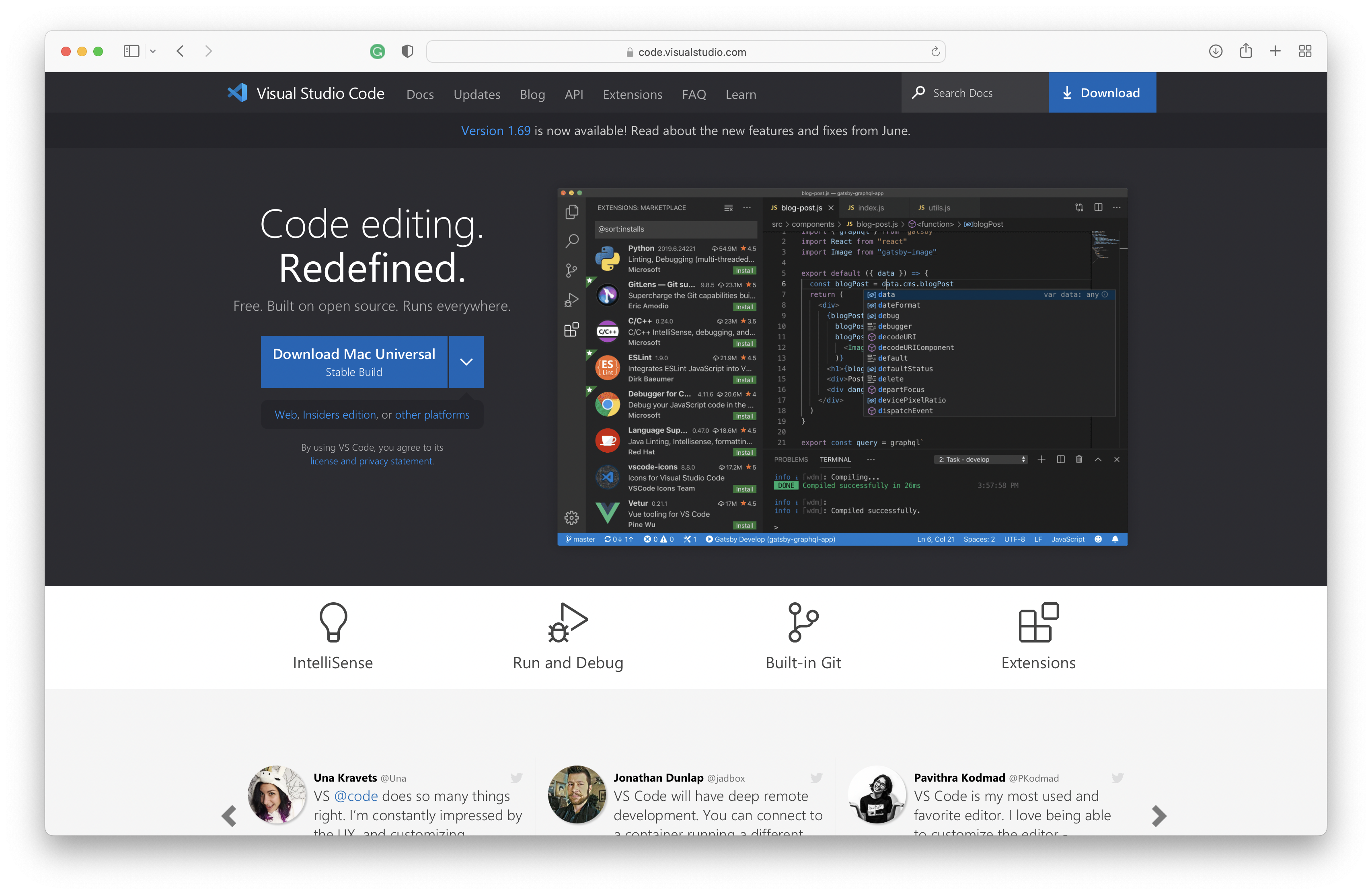
Fig. 1 To download Visual Studio Code, click on the download button and follow the on-screen instructions.#
Once VSCode has been installed, we need to install the Julia extension for VSCode. The Julia extension for VSCode enables syntax highligting, access to a modern debugger, built-in dynamic autocompletion, inline results, plot pane, integrated REPL, variable view, code navigation, and many other advanced language features.
To install the Julia extension for VSCode, open VSCode and navigate to the extensions panel. In the search field, enter Julia and select the green install button on the Julia language support extension (Fig. 2):
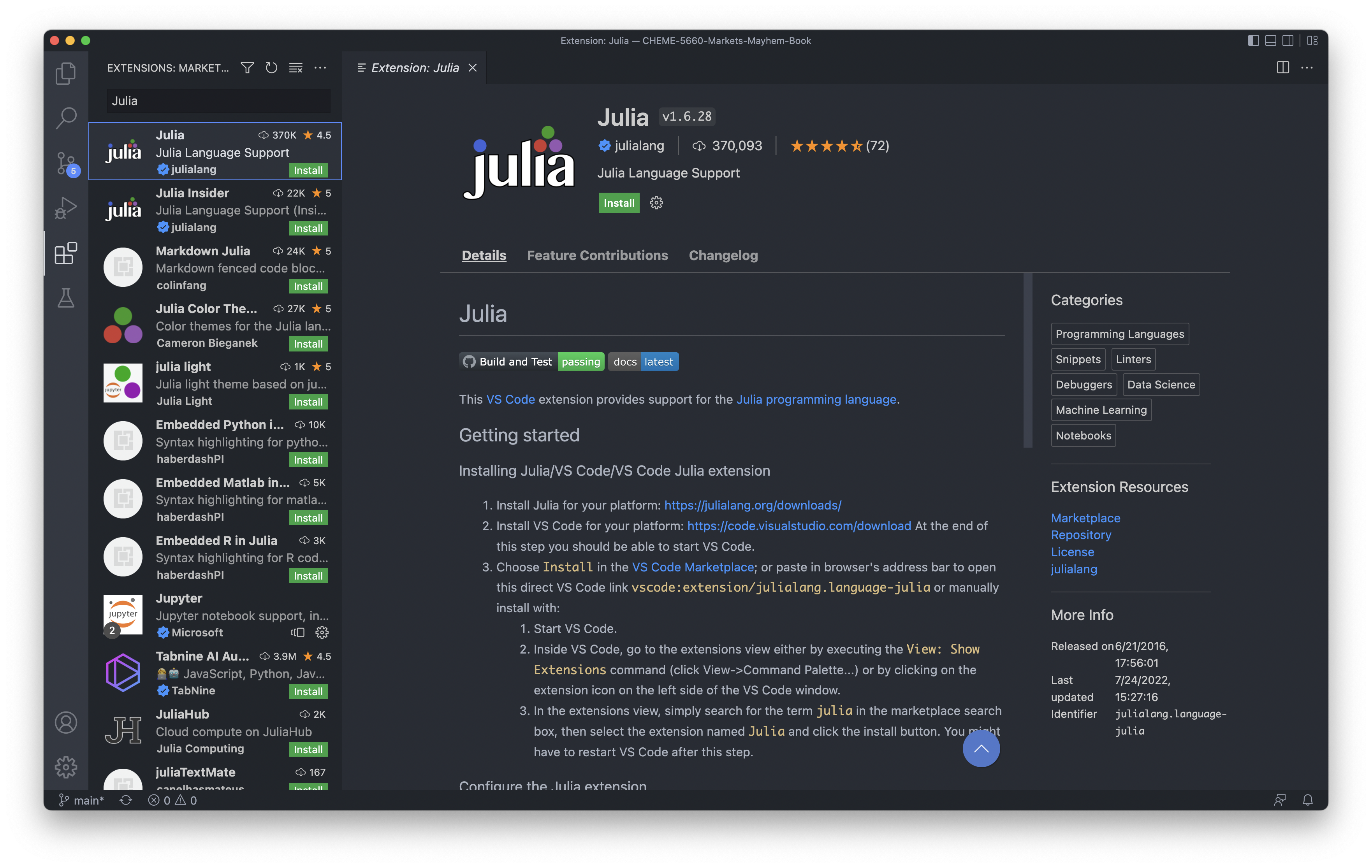
Fig. 2 The Julia extension for VSCode can be installed from the Extension tab of Visual Studio Code (VSCode) or by accessing the Extensions from the Preferences menu.#
Additional Resources#
For the latest information on Julia, check out the Julia blog.
For the latest updates on VSCode, check out the VSCode blog.